








About | Privacy Policy | Terms of Use | Support | Contact Us
Copyright © 2026 Tipard Studio. All Rights Reserved.
4K High-res
Capture clear & detailed videos
10 Years
of proven quality
3M+ Users
from 160+ countries
10+ Updates
per year (entirely optional)
 Screen Capture
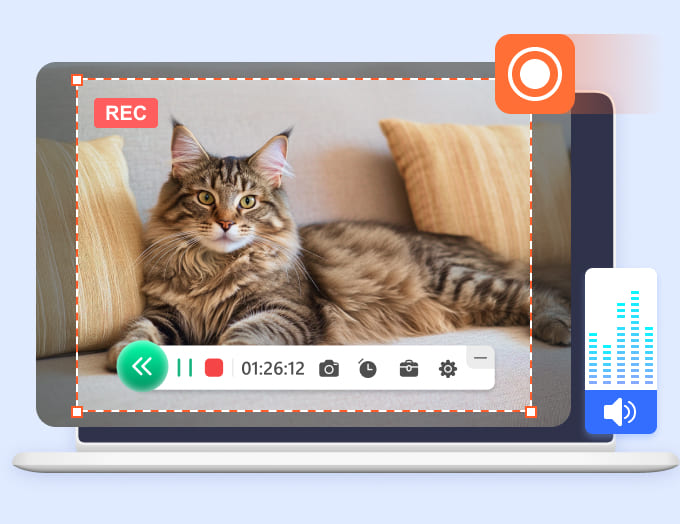
Tipard Screen Capture can record your screen with audio on Windows or Mac in any situation. The drawing, annotation, and keystroke features can also make your recordings vivid. Enjoy smooth and clear video and audio recording.
Record Desktop Activities and Webcam

Record Audio and Voice in Clear Quality

Schedule and Automate Screen Recording

Create Dynamic Videos with Annotations

Tipard Screen Capture makes screen recording easy for work, learning, entertainment, and content creation. This versatile screen recorder helps you capture your screen, audio, webcam, and on-screen activities for any purpose.
Record for Content Creation, Sharing & Storage
Record your screen, audio, and webcam to create social media content with built-in editing features. Share your works to platforms such as YouTube, Facebook, X (Twitter), and Vimeo for easy distribution. You can also save your recordings to your PC/Mac.
Record for Video Calls & Meetings
Record video calls, online meetings, webinars, and virtual classes on Zoom, Microsoft Teams, Google Meet, GoTo Meeting, FaceTime, and more with your screen, webcam, system audio, and microphone. Capture conversations clearly for later review.
Record for Instructions
Create clear instructional videos, tutorials, and how-to guides by recording your screen with mouse actions, keystrokes, annotations, and voice-over.
Record for Presentations
Capture presentations, demonstrations, slides, and on-screen explanations with system audio, microphone, webcam, and real-time annotations.
Record for Software Demos
Create clear software demos, product walkthroughs, and how-to videos with screen recording. Highlight important steps and actions to make every demonstration easier to follow.
Tipard Screen Capture delivers advanced recording performance with hardware acceleration and flexible encoding options. Capture HDR 10-bit video, up to 120 FPS, lossless audio, and both Constant Frame Rate (CFR) and Variable Frame Rate (VFR) for high-quality screen recording.


Hardware-Accelerated Recording
Tipard Screen Capture can take advantage of supported hardware video encoders to process screen recordings more efficiently, helping reduce CPU workload during real-time video encoding.
Hardware-accelerated encoding helps your computer handle demanding recording tasks more efficiently, especially when capturing high-resolution or high-frame-rate screen content, like AAA games, 4K/8K displays, and animations.
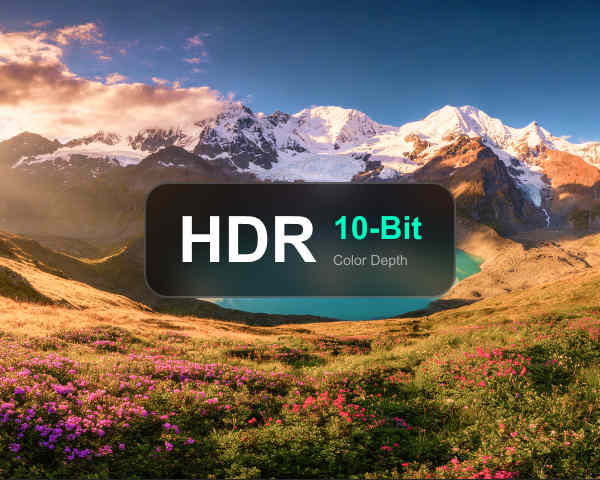
Capture HDR 10-bit Video
Record supported HDR content with 10-bit color depth, preserving more color information and smoother tonal transitions than standard 8-bit recording.
Maintain a wider range of brightness and more subtle color gradations when recording supported HDR video, making the captured content more suitable for high-quality playback and post-production.
Up to 120 FPS Recording
Record screen activity at up to 120 frames per second (FPS) for smoother motion and more detailed frame-by-frame playback.
High frame rate recording is especially useful for gameplay, sports videos, animations, and fast on-screen actions, where smoother motion can make individual movements easier to follow.
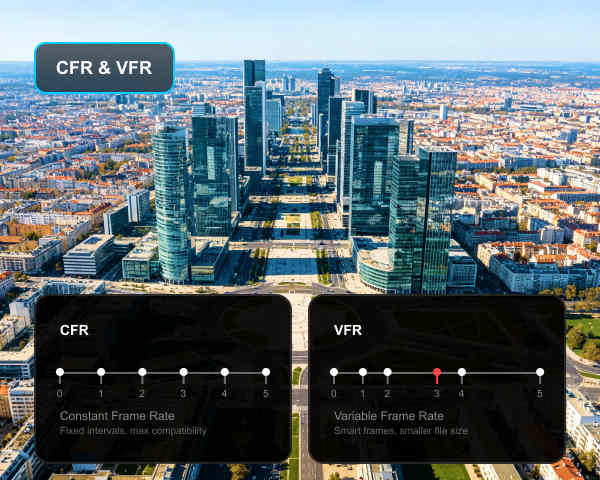
CFR and VFR Recording
Support both Constant Frame Rate (CFR) and Variable Frame Rate (VFR) recording, giving you greater control over how frames are generated and stored.
CFR provides a consistent frame interval that can be useful for video editing and compatibility, while VFR can adapt the frame rate to on-screen activity and potentially improve recording efficiency for certain content.
Customize the Output as You Like
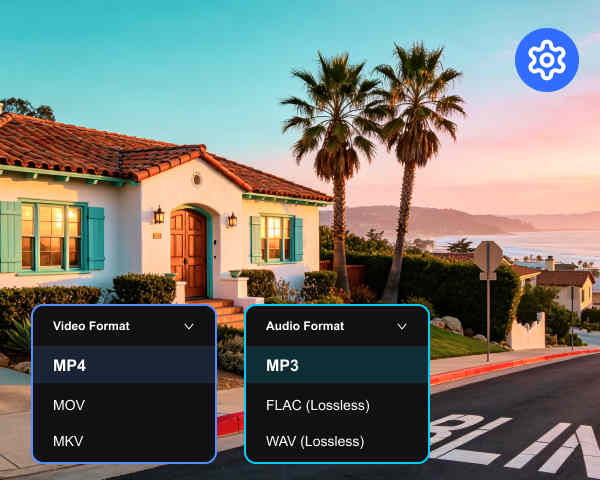
Record your video or audio as MP4, MKV, MOV, MP3, FLAC, AC3 (with H.264, HEVC, AV1), and more. You can also adjust the sample rate and keyframe interval to fine-tune your recording output and make seeking and editing more responsive.
Select High, Medium, Low, or Custom quality based on your needs. You can set a specific bitrate (up to 45 Mbps) for more precise quality and file-size control.
Tipard Screen Capture is more than a screen recorder. It combines gameplay recording, mobile screen recording, and built-in video editing tools to help you capture, enhance, and manage your content in one place.
Record and Edit Your Videos in One Place
You can directly edit your video/audio after recording or in your recording history with built-in video editing and processing tools. Trim unwanted clips, compress large recordings, convert video and audio formats, and merge multiple clips into a single file.


Record Gameplay Without Lag or Dropped Frames
Record gameplay on your PC or Mac with a dedicated game recorder designed to capture fast-moving on-screen action smoothly. You can select a game window or recording area and capture gameplay in high quality with support for system audio, microphone, webcam, and mouse effects.
Tipard Screen Capture can help you create gameplay videos, walkthroughs, tutorials, and game guides with keystroke displays and real-time annotations. Capture your in-game actions and commentary together to make every move easier for viewers to follow.
Record Phone Screen in Bigger Display
Tipard Screen Capture can turn your computer into a mobile screen recorder by mirroring your iPhone or Android screen to Windows or Mac via Wi-Fi or USB connection. Capture mobile apps, gameplay, tutorials, demonstrations, and other on-screen activities on a larger display.
You can keep the content on your phone easy to view and manage on your computer. It's useful for creating mobile app tutorials, recording mobile gameplay, demonstrating app features, and capturing other smartphone content.


Custom Recording Presets
Save your preferred recording settings, like screen portion, audio, webcam, microphone, and watermark. Fast-launch your next recording with your preferred settings.

Instant Preview & Recording History
Preview your recordings immediately after capture and access previous videos and audio files through Recording History for easy management.

Quick Screenshot
Capture full-screen, window, or custom-area screenshots instantly to save important moments alongside your screen recordings.
1
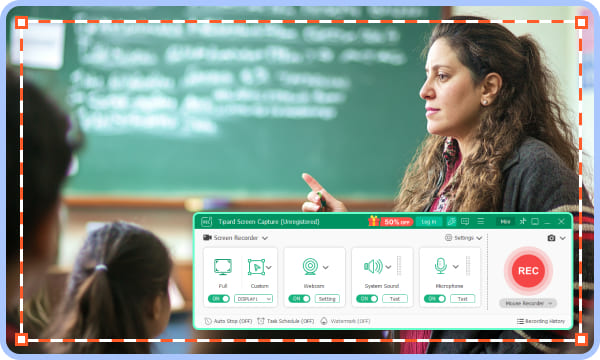
Choose Recording Mode
You can choose to record screen, window, or audio only, etc. Then, you can click the Settings button to adjust presets before recording.
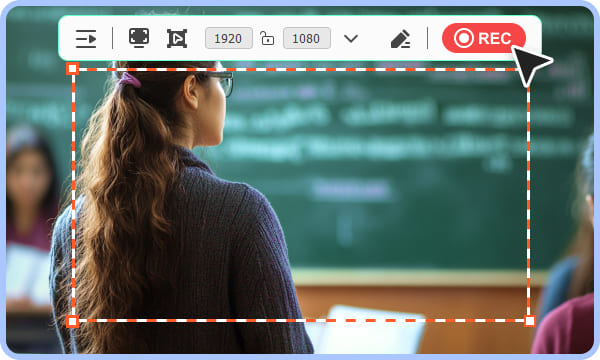
2
Start Recording
You can also add webcam overlay. Click the REC button to start recording. During recording, you can draw on the video or add whiteboard and insert images, etc.
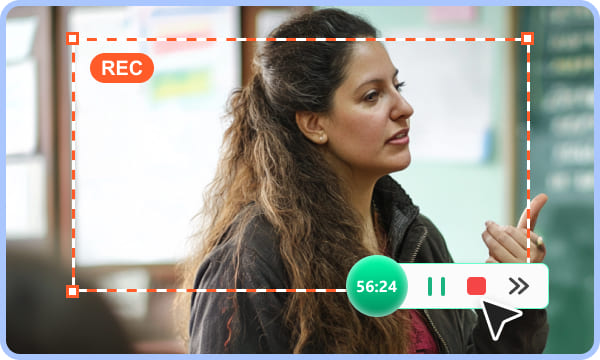
3
Save Recordings
Click the Stop button to end the recording. You can then edit it, save it locally, or share it easily on various social platforms.

Tipard Screen Capture can record video, and audio you desire on Mac. Besides, you can choose to record with the system audio or microphone audio according to your needs.

Tipard Screen Capture is a versatile tool that enables you to capture any video, audio, or screen activity on your computer.

This software can record webcam video, desktop activities, and other video tutorials with HD or 4K UHD resolution. You can save them as MP4 or WMKV for easy playback.
R
Rune
Gamer
"Tipard Screen Capture can record my Fortnite gameplay very smoothly. Also, it takes very little RAM and CPU resources. I can easily play my game and record the game without any lag. The recorded gameplay is very clear."
B
Bloop
Marketing
"I like the fantastic video and audio quality of the recordings. This recorder can record my high-quality videos without a large file size. My members can quickly download and watch the videos even when the network is slow."
U
Umbra
Amateur
"When I recorded a guiding video, the recording could be smaller than 30mb! That's so amazing because the video quality is also very good in 1080p resolution. That really blew my mind that a video can be so amazing in this way."
M
Mark T
Content Creator
"The interface is clear, and recording my screen takes just a few clicks. Great for everyday tasks!"
S
Sarah
Online Educator
"It captures clear video and audio, making it easy to create professional-looking tutorials and demos."
D
David
IT Specialist
"I use it to record software walkthroughs and online meetings. It saves me time and keeps my workflow simple."
Does Tipard Screen Capture have a recording duration limit?
As long as there's enough storage on your computer, Tipard Screen Capture can record for as long as you want.
How can I set the position and size of the webcam overlay window?
You can drag and drop the webcam window on the recording screen on your desktop. You can drag the controllers webcam window to change its size.
Can I record my voice?
Yes, you can. Just toggle on Microphone on the main interface to record your voice.
Why does my recorded video lag or stutter when I drag the progress bar?
This is usually because the Keyframe Interval is too long (like 10 seconds or more). Set your Keyframe Interval to 2 seconds for a smoother experience. When you skip to a specific time, the player must go back to the nearest Keyframe to start rendering the image. If Keyframes are too far apart, you will experience seeking lag or brief black screens.
Where are my screen recordings stored?
Tipard Screen Capture can help you store your screen recordings in the recording history. You can easily access them when you open the program.
How can I record my iPhone with Tipard Screen Capture?
Ensure that your computer and your iPhone have connected to the same Wi-Fi or hotsot. Then, scroll down on your iPhone to launch Screen Mirroring and connect to Tipard Screen Capture. Then, you can record your iPhone's screen and audio.
How can I share my recordings to YouTube?
After stopping recording (or go to the recording history), right-click on your recordings and click the Share button. Then, you can share it to YouTube, X, Facebook, Vimeo, and many other social platforms.
Record screens, videos, and audio on Windows and Mac with ease.
Windows 11/10/8.1/8/7
30-Day Money Back Guarantee
macOS 10.13 or later
30-Day Money Back Guarantee